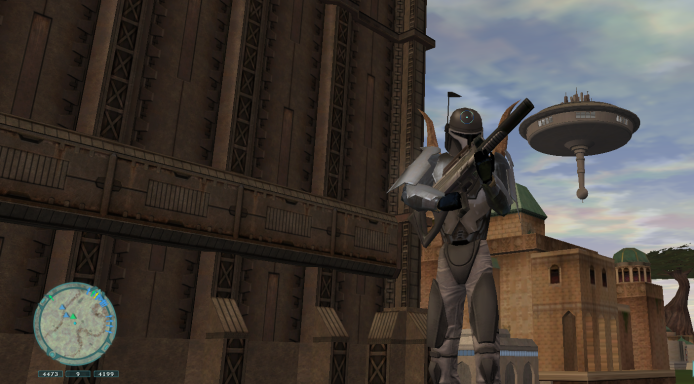
As of late, I seem to be suffering a some issues with regards to the native Linux client. The main one at the moment is with the mouse. For some reason, it just doesn't want to stay in one place what-so-ever. Handy is space when trying to avoid flying straight, a nightmare when trying to hit anyone or anything. In order to be able to play at least somewhat, I tried to make the Windows file work under CachyOS. Seeing as this is an Arch Linux distro, it should work with other Arch Linux distro's as well. And, by the Force, I got it working. How then did I do it? Well, let me tell you.
I managed to install this using Lutris, which is a game launcher. No account is needed to use Lutris, only an installation of it. I also used a specific version of GE-Proton: 10-34. It's an older one, but it makes the launcher run, so it is good enough for me. You may need to install ProtonUp-qt in order to install it (make sure to select Lutris in ProtonUp-qt).
So, do the following:
Install Lutris
Download the Windows file (SWGEvolveInstallx64.exe)
Create a directory for the game and the rest needed
Copy or move over the downloaded file to the created directory
Now open Lutris and click the plus-sign in the tope right of the window. The click the selection "Add locally installed game." On the "Game Info" tab, fill out a name (in example: Star Wars: Galaxies Evolve). Select "Wine (Runs Windows Games)" at Runner. Switch to the "Game Options" and click the browse button next to the "Executable" field. Navigate to the downloaded file and double-click it. This makes it filled out in the executable field. The "Wine prefix" field should contain the directory where the downloaded file is. Then click "Save" in the top-right.
In order to install this file, we need webview2. Click the tile you just created (yes, it's ugly but we'll get to that), and then click the up-arrow next to the (wine)glass, then click "Winetricks" and click OK in the popup. In the following screen, select "Select the default wineprefix" (should already be selected) and click OK. Select "Install a Windows DLL or component" and click OK. Scroll down to "webview2", select it and click OK. It will seem not much of anything happens, yet after some time a popup will show up telling it is working around a bug. This will happen again soon after. This will indicate that webview2 is installed.
If the tile is now double-clicked, or "Play" is clicked, the file should start the install. Follow the on screen instructions, do not change anything, and in the final screen uncheck "Launch" and click "Finish."
Right-click the tile you created and click "Configure" and go to the "Game Options" tab. Click the browse button next to the "Executable" field and then double click the following:
drive_c
users
steamuser
AppData
Local
SWG Evolve
EvolveLauncher.exe
This will populate the "Executable" field with the launcher executable.
Click the "Runner Options" and select "GE-Proton 10-34" at "Wine version." While on this tab, toggle both "Esync" and "Fsync" off. Then go to the "Game Info" tab and click the first box shown. This will open a window that allows you to select a custom image; swg-evolve-launcher.png should be there. Double click that and it should be present on the "Game Info" tab. You can do the same with the other two boxes. Then click "Save" in the top-right. Suddenly the tile is not so ugly anymore.
Right-click the tile once more and select "Create desktop shortcut". It should place a shortcut on your desktop. Double-click that and the launcher should show itself and you should be able to update/install.
Happy gaming in SWG Evolve in Linux.